
Run JD Edwards like an orchestration.
Without building one.
Define a JDE transaction once. Swivio posts it through the JDE forms you already use and tests it again after every ESU, tools update or Code Current cycle: with full business logic, your users' security and test runs that save nothing.
{
  "customer": 4242,
  "item": "AX-200",
  "qty": 12,
  "key": "WS-88317"
}Five problems you know.
Each video shows a problem from everyday JDE work and how Swivio solves it.
Narration: AI-generated voice. Images from the Swivio demo, no customer data.
What Swivio looks like
Screenshots from the Swivio demo against a real JD Edwards, no customer data.
 Tested on JDE
Build it automatically
Name the program and version, for example P4210. Swivio reads the forms and event rules, takes example values from your JDE data, builds the app and proves it with a test run that saves nothing.
 Tested on JDE
App designer with phone preview
Set per field how it is entered: keyboard, scan, choice, default or fixed value. The preview beside it is Swivio Go itself; every change shows at once.
 Tested on JDE
Swivio Go on the phone
Sign in with your own JDE user, fill in or scan the fields, post. The order number from JDE shows on the phone at once.
 Tested on JDE
Excel and CSV upload
Download the template, fill it in, upload. A test run first, then post to JDE. Every row gets its order number and a test report.
After every ESU, tools update and Code Current cycle: your processes tested end to end.
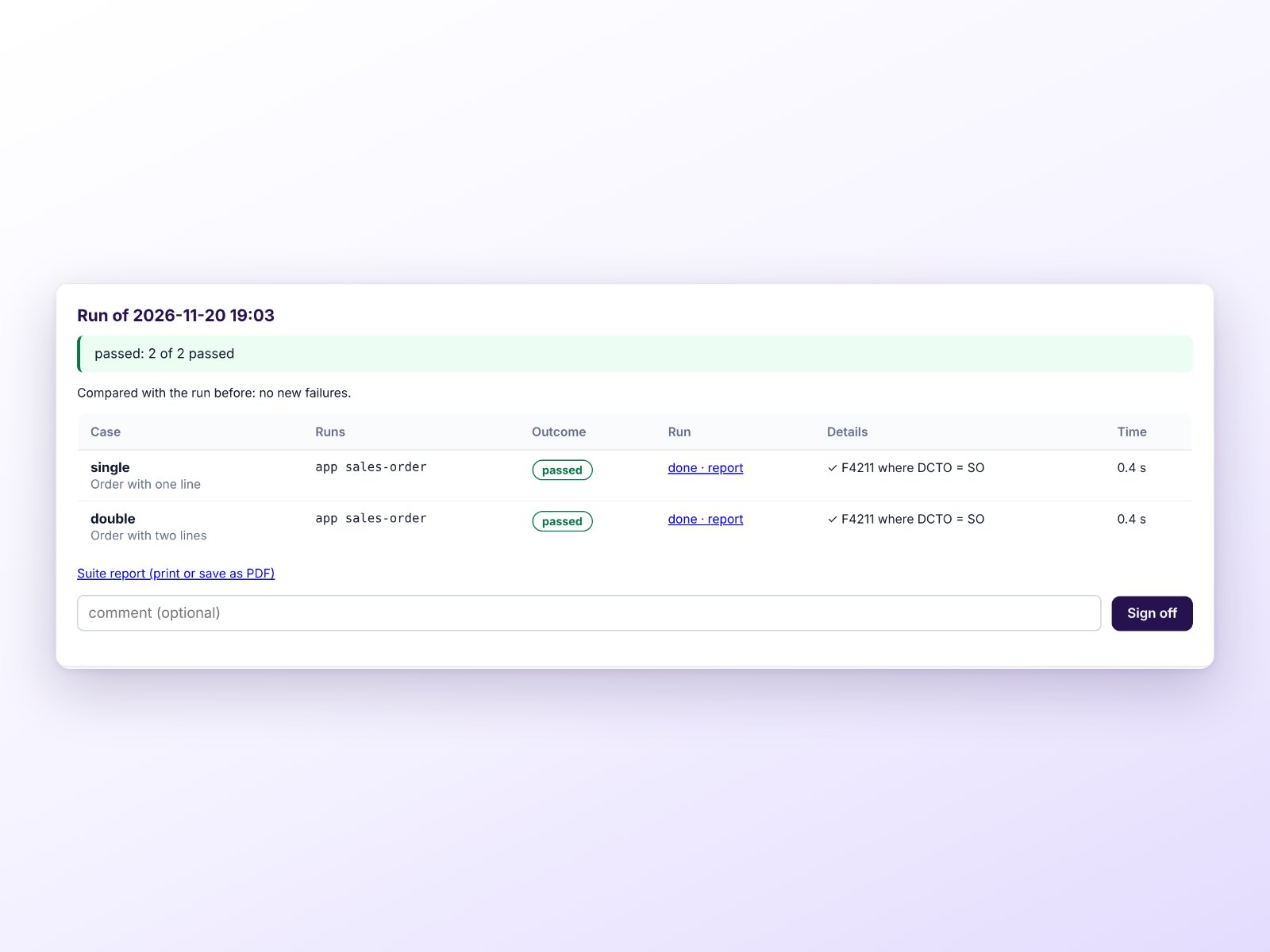
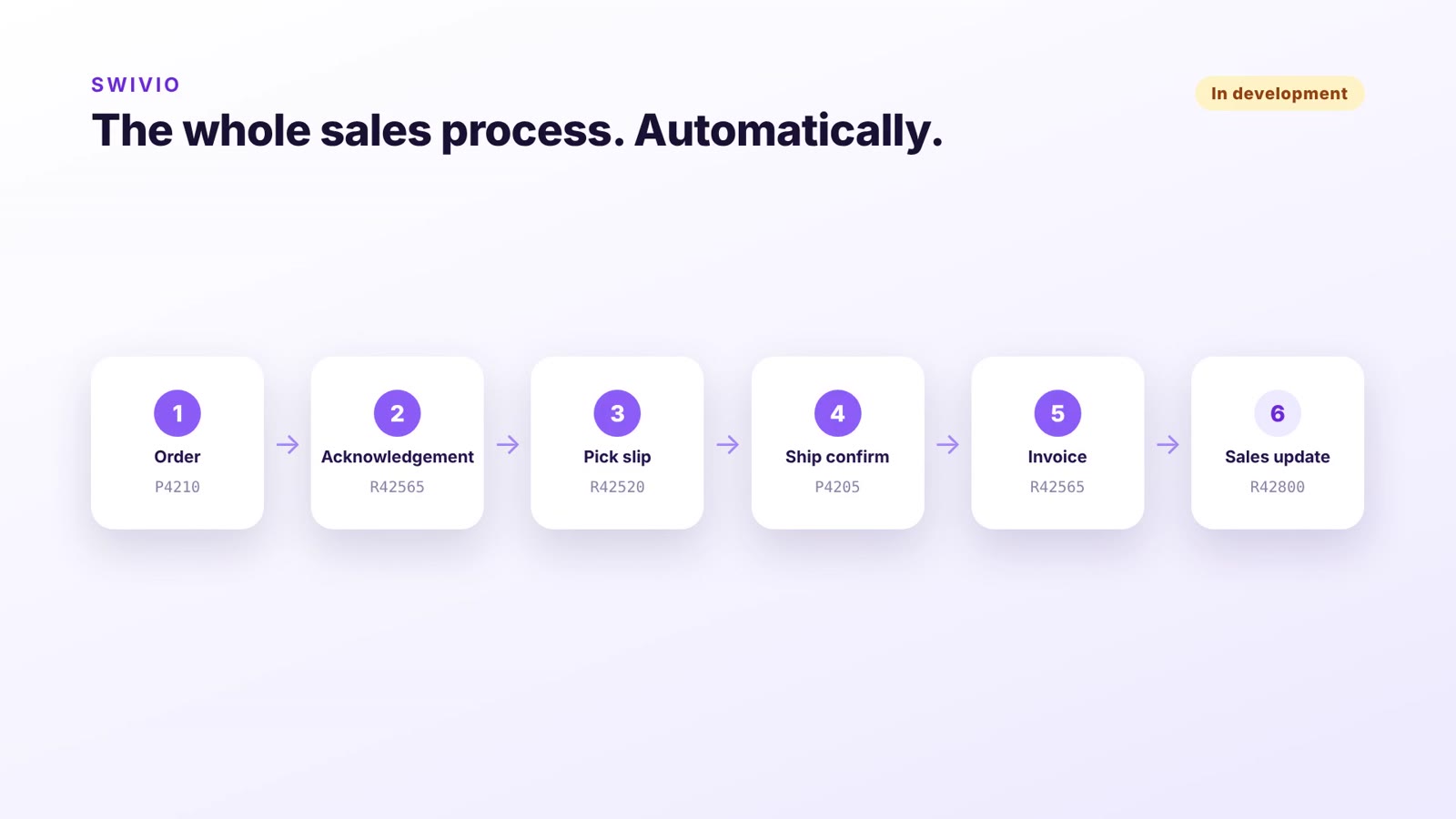
Today key users test by hand for days after every update, or nobody tests at all. With Swivio you set up your processes once. From then on the complete run is meant to go through the test system at the push of a button, from order to invoice, with the documentation ready. Test runs and a log per transaction exist today; test suites with the report as a document are built and in trial, the whole sales process as a test is in development.
- 1Set up onceDescribe processes from the JDE forms you already use.
- 2Real casesTest cases from real documents of a period.
- 3Apply the updateESU, tools release or Code Current into the test system.
- 4Run end to endAll processes post in the test system, compared field by field with the original.
- 5DocumentationReport per process and case: passed or not, with every form and message. For sign-off and auditors.
Test run without posting
JDE checks every value right up to saving, nothing is posted.
✓ AvailableLog of every run
Which form, which value, which button, which JDE message.
✓ AvailableProduction protected
Tests only run in approved test environments; production is locked in the code.
✓ AvailableCheck forms after updates
The form catalog shows which fields or buttons are missing after the update.
✓ AvailableTest suites
Many cases at once, on a schedule, compared with the last run.
In trialWhole process chains
The sales process from order to sales update as one test, a thousand times.
In developmentTest report as a document
For sign-off, change management and auditors, to file or as PDF.
In trial
Pilot customers wanted: we test your next ESU or tools update together with you, in your test system and with your real processes.
Apply as a pilotThis is what the log looks like today
Define it once.
Post it through the forms.
Swivio reads the JDE forms itself: fields, grid and buttons. A transaction is defined once and then posts straight through the forms. Business functions, processing options and validations apply as they do for a user. Nothing is built in JDE. For data out of JDE, interfaces detect every change in JDE tables and pass exactly that on.
Four steps to the first posting
- Read the formsSwivio reads fields, grid and buttons from your test environment, never from production.
- Define the transactionSet inputs, steps and mapping once, plus a key against double postings.
- Test runUp to just before saving: JDE checks every value, nothing is posted.
- PostIn approved environments, with the JDE user. After an interruption it continues from the last successful step. If the outcome is unclear, a person decides – never an automatic retry.
And afterwards
What Swivio is used for
Sales orders from other systems
A web shop, portal or partner system calls Swivio. The order is created in JDE, with JDE pricing and checks.
Intercompany
An order in company A creates the purchase order in company B.
In developmentQuote becomes order
An accepted quote becomes a sales order, without retyping.
In developmentShortage becomes purchase order
On a shortage or reorder point, Swivio creates the purchase order.
In developmentData out of JDE
Interfaces detect every change in JDE tables and deliver it via REST, to a database, as a file or via SFTP.
EDI and inbound data
Inbound messages enter JDE through the JDE interface tables and JDE logic.
The sales order has been proven in a test against JD Edwards (tools 9.2.26.3). Transactions started by JDE data need triggers from JDE data; those are in development.
Everything Swivio does
39 features
In development Announced and in progress, not yet in the current release. Ask us for the current status.
In trial Built and part of the release, currently being tried with real processes on JD Edwards.
Change data capture
Through update stamps or a change log; only real changes become events.
Real-time trigger from JDE
Optional: an orchestration in JDE reports changed keys, Swivio reads at once. Without it, Swivio polls.
optionalStatus changes and deletes
Recognised as events of their own.
REST and SOAP
With signature, OAuth 2.0 and retries on errors.
Databases
PostgreSQL, SQL Server, Oracle, IBM i, with upsert.
Files, SFTP, mail, AS2
Kafka and message queues too.
Order and safety
Order per key, circuit breaker per target, test mode without sending.
Inbound interfaces
Data into Z and EDI tables, processed by JDE logic.
Required fields and number ranges
Fixed values, batch and transaction numbers by rulebook.
EDI
Orders and ship notices through EDI tables.
Incidents and escalation
One incident per problem, escalation by mail, Teams or Slack.
Resend
Snapshot, replay or resend of single events.
Four eyes
New and changed interfaces go live only after approval.
Sign-in
OpenID Connect or Active Directory, roles in the portal.
Posting through the JDE forms
Through AIS, without an orchestration per transaction. The JDE logic and the user's security apply. Tested against JD Edwards (Tools 9.2.26.3): a sales order created this way, document number returned.
Test run
Up to just before saving: JDE checks every value, nothing is posted.
No double posting
One key per transaction. A run resumes after the last successful step. If the outcome is unclear, a person decides instead of an automatic retry.
Production protected
Tests and reading the forms never run in production. Apps write only to approved environments.
With your own JDE user
Every run signs in with the JDE user, no technical super user. Passwords are not stored.
Form catalogue
Swivio reads the structure of the JDE forms. Every run compares the form with the catalogue and reports fields or buttons that went missing after a tools update, an ESU or a personalisation.
Triggers
Via REST from any system that can call a web API, by Excel and CSV upload and with Swivio Go on the phone. Schedules and triggers from JDE data are next.
AIS is all it needs
Apps run without database access, also with self-signed AIS certificates.
Keep what you have
Swivio does not replace the Orchestrator. Existing orchestrations stay as they are. Swivio saves you the orchestration per transaction.
Web app without an app store
Add it to the home screen, sign in with the JDE user. Every app as a tile with large fields.
Tested on JDEScanning
With the camera or a handheld or Bluetooth scanner.
In developmentPosting offline
Without a network the posting waits on the device and goes out once it is online again. Sent twice, it posts only once.
In developmentLook-ups before posting
A scanned item shows its description from JDE at once, or “not found”.
In developmentPhoto and signature
After posting, attached to the record in JDE as a media object, e.g. a delivery note or damage.
In developmentApprovals on the phone
Approve or reject with a summary; a rejection needs a reason.
In developmentApp editor without code
Enter a program such as P4210, pick the fields or record the transaction in test. Templates for sales order and receipt.
Tested on JDEExcel and CSV upload
Download the template, fill it in, upload. Rows become postings, in the background and without double postings when uploaded again.
Tested on JDEProcesses
Apps and JDE reports (UBE) in sequence; results such as the order number pass to the next step. Templates in the process library.
In developmentCheck steps
After posting, Swivio reads JDE tables and checks that everything is as expected, e.g. the next status.
In developmentApprovals
Rules by amount or role, four eyes, reminders and escalation. Small amounts can pass automatically. The approver posts with their own JDE user.
In developmentTest suites
Many cases at once in test, on a schedule, compared with the last run, with sign-off and a report.
In trialTest report per run
Every run records each form, value, button and JDE message involved.
Interface designer
Map fields by dragging, target structure from OpenAPI, XSD or a sample.
AI interface designer
A draft from a description, with questions instead of guesses.
optionalTaking over legacy interfaces
Read existing programs and compare in shadow mode.
Nothing found. Ask us directly whether Swivio can do it.
Your path with Swivio
Swivio logs every run step by step: actions sent, messages from JDE, results such as the document number, JDE user and time.
- Stage 1
First transaction
Read the forms, define the transaction, test run, post.
Your progressPosted without an Orchestrator project. - Stage 2
More transactions
Every new app is a definition. Test run, adjustment and approval happen in one place.
Your progressNew transactions without a project each. - Stage 3
After the next update
Re-read the forms in test after the update. The catalogue shows changed fields and buttons.
Your progressYou see it before an app fails in production. - Stage 4
Data out of JDE
Interfaces pass changes on to web shop, CRM or logistics.
Your progressTransactions and interfaces in one portal.
See Swivio in your environment?
Tell us briefly what it is about. We will get back to you within two working days.